Set up the call disconnect indicator
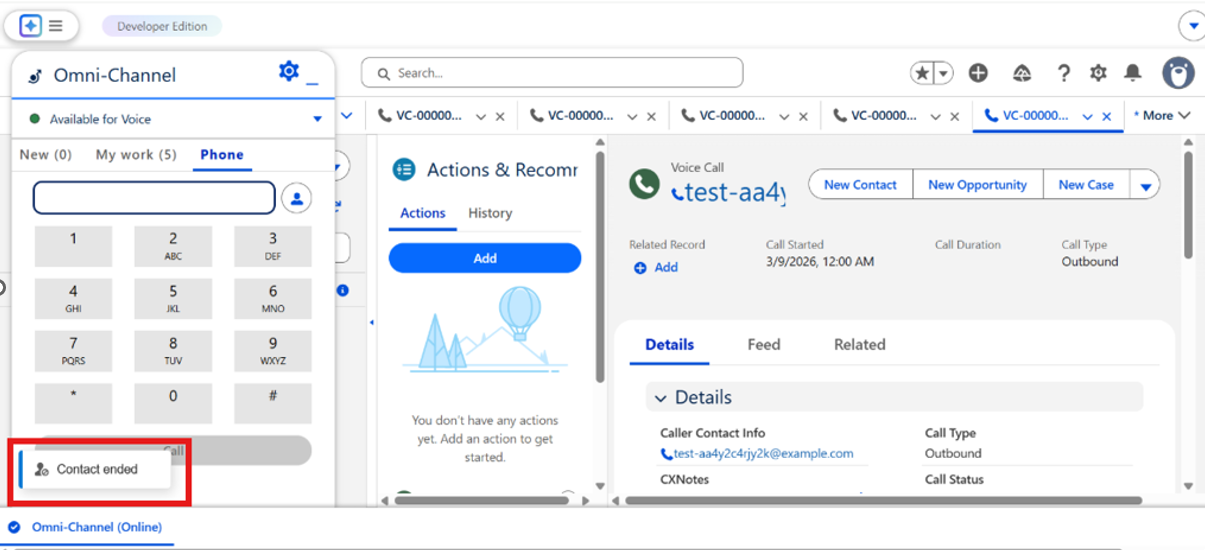
The call disconnect indicator displays a Contact ended toast notification on the Voice Call record page when a call disconnects. The toast appears in the bottom-left corner of the page, overlapping the Omni-Channel softphone panel, and automatically dismisses after four seconds.
As an administrator, you add the callDisconnectIndicator Lightning Web Component to the Voice Call record page layout. A developer must deploy the component to your org before you begin.
Prerequisites
-
System Administrator profile or equivalent permissions in Salesforce.
-
The callDisconnectIndicator component is deployed to your Salesforce org. Confirm with your developer that the deployment is complete before you proceed.
-
At least one Voice Call record exists in the org (required to open the record page for editing).
Add the component to the Voice Call record page
You only need to complete this procedure once per org. If the component is already on the page layout, skip to Verify the setup.
-
Open any Voice Call record in Salesforce.
-
Select the gear icon in the upper-right corner, and then select Edit Page.
Lightning App Builder opens.
-
In the Components panel on the left, expand Custom.
-
Locate callDisconnectIndicator and drag it onto the page canvas. Drop it above the Actions & Recommendations component.
-
Click Save.
-
Select Activate > Set as Org Default > Save.
 View image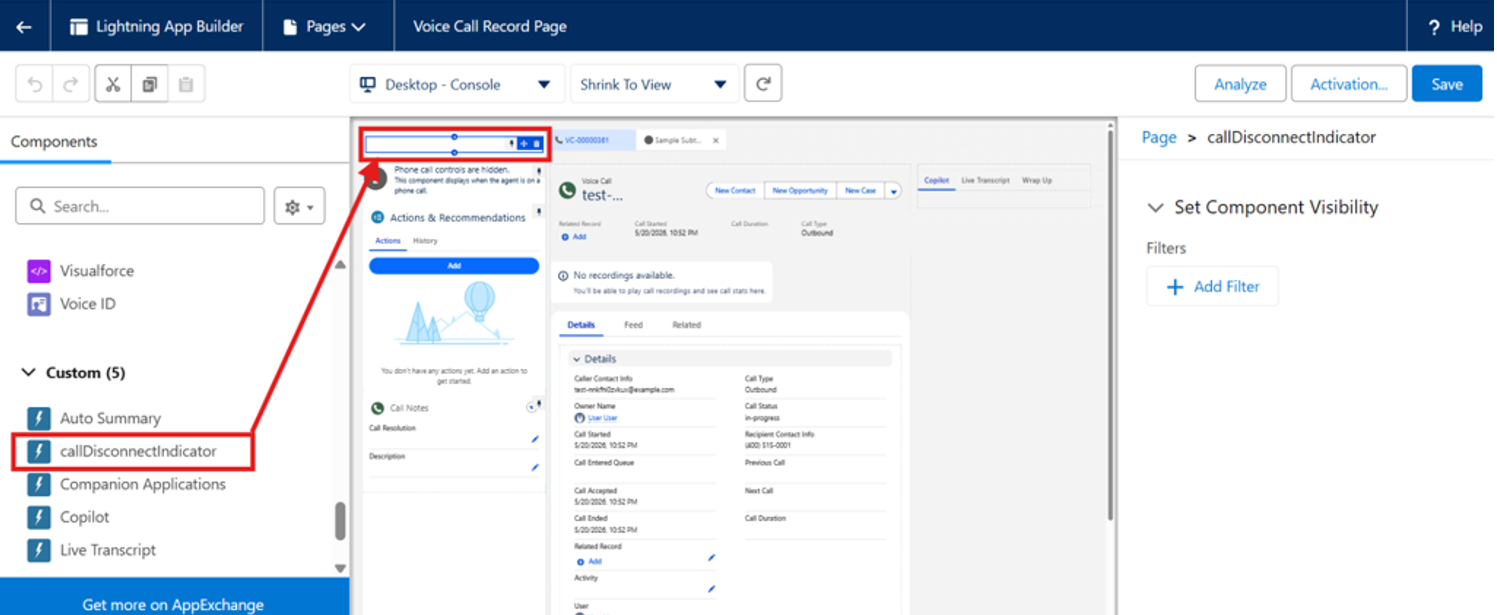
Verify the setup
After you add the component, verify that the toast notification appears correctly.
-
Make an inbound or outbound call.
-
End the call.
Lightning App Builder opens.
-
Confirm the following:
-
A Contact ended toast notification slides in from the bottom-left corner of the page.
-
The toast overlaps the Omni-Channel softphone panel.
-
The toast automatically dismisses after approximately four seconds.Locate callDisconnectIndicator and drag it onto the page canvas. Drop it above the Actions & Recommendations component.
If the toast does not appear, confirm with your developer that the component was deployed successfully and that the page activation in the previous step completed without errors.
-